
Free FB Audio Downloader
- No Ads
- 100% Free & Safe
- 1080p


FB audio downloader: turn any Facebook video into MP3 and keep the original sound, no app needed.
How to Download Facebook Video as MP3 Using FvidGo?

Step 1: Get the Video Link
Open Facebook and find the video or Reels you want to convert. Click the "Share" button and select "Copy Link".
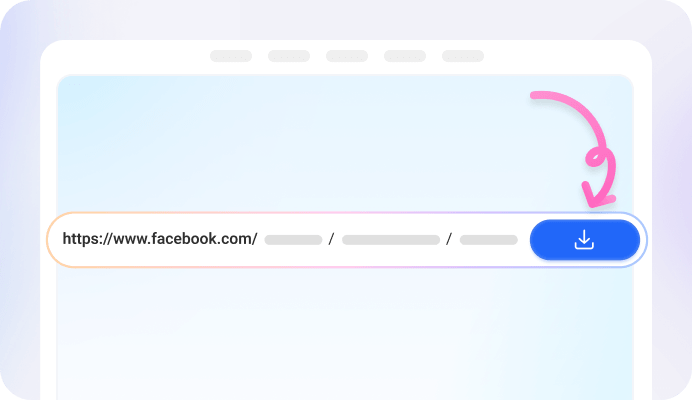
Step 2: Paste and Parse
Paste the link into the input box at the top of FvidGo. The system will automatically identify the video content and quickly parse the extraction options.

Step 3: Select Format and Download
Select the "Audio" format from the parsed options list, click the "Download" button, and the audio file will be automatically saved to your device.
Add FvidGo to Home Screen

Why Choose FvidGo as FB Video Downloader MP3
100% Free with No Limits
Instant Online Conversion Experience
Original Quality Audio
Supports All Types of Facebook Links
No App or Plugin Required
Strict Privacy and Security Protection
Cross-Platform and Device Support
Easily Handle Long Video Audio
Smart Automatic Naming System
Explore Diverse Audio Use Cases with FvidGo
Immersive Meditation and Sleep Audio
Custom Fitness Playlists
Travel Essential: Free Offline Music
Creative BGM Collection
Custom Ringtone Creation
Offline Podcasts and Speeches
Language Learning Materials
Academic and Meeting Archives
FAQ: Download FB Video to MP3
1. Can FvidGo download audio from Messenger?
No. Facebook officially does not provide externally accessible sharing links for private voice messages or audio in Messenger. FvidGo needs valid public links for parsing, so it cannot access and download audio files from within Messenger.
2. Can FvidGo download audio from Facebook Watch?
Yes. FvidGo perfectly supports parsing and extracting video audio from Facebook Watch. You simply need to copy the link of the target Watch video, paste it into the top input box, and you can quickly convert it to MP3 format.
3. Where are the downloaded MP3 files saved on my device?
Usually, files are saved in your browser's default download path. You can click the "Settings" or "Menu" icon (usually three dots or three horizontal lines) in the upper right corner of the browser, find and click "Downloads", and you will see the audio file you just downloaded. If you are on a mobile device, you can usually find it in the system's "File Manager" or "Downloads" folder.
4. Can FvidGo be used directly on an iPhone or Android phone?
Yes, absolutely. FvidGo is a pure web-based online tool with excellent cross-device compatibility. Whether you are using an iPhone (iOS) or Android phone, simply open the browser on your phone (such as Safari or Chrome) to visit this site, and you can Facebook video download audio directly without installing any App.
5. Can I use FvidGo to convert any Facebook video to MP3?
This depends on whether the video itself contains audio data. If the original video has sound, FvidGo can successfully extract the audio for you; but if the video itself is purely muted (i.e., contains no audio track), FvidGo cannot magically convert an audio file out of nothing.
6. Are there any limits on daily downloads or converted video length?
There are no limits at all. FvidGo is committed to providing a 100% free and barrier-free experience. You can download an unlimited number of audios anytime, anywhere, and even hours-long Facebook live replays or ultra-long videos will not be hindered by any count or duration limits.